Smartphones · Samsung
Galaxy Z Fold 8: Do These 15 Things First
Verdict
Your Fold 8 has arrived. Here's exactly how to set it up properly, and the settings Samsung doesn't exactly advertise.
So the courier has been, the box is on your desk, and you’re about to set up the most interesting phone Samsung has made in years. Before you dive in, a warning, a checklist, and a keyboard fix that might be the best three minutes you spend on this phone.
I’ve been living with the Galaxy Z Fold 8 for nearly three weeks now, and I’ve put together the fifteen things I’d do to yours immediately. This article is the quick reference version. If you want to see every one of these demonstrated on the actual phone, the full video walkthrough is here, and I’ve linked the exact moment for each tip below so you can jump straight to the ones you need.
Right. Moving-in day.
First, don’t peel that screen
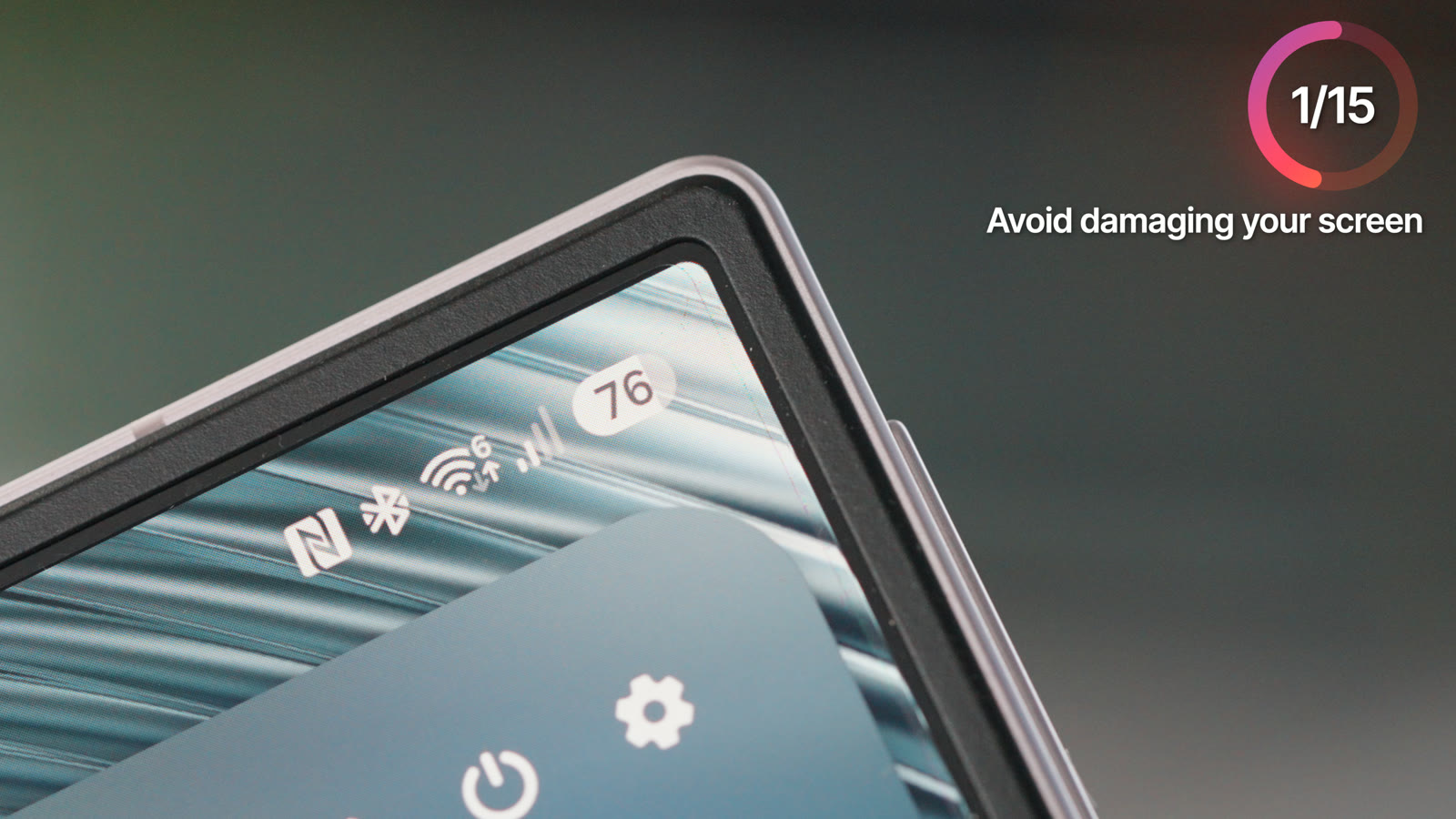
The inner screen has a factory-fitted protective layer. You can see the edge of it, you can feel it, and it’s very tempting to mistake it for packaging film. It isn’t. Leave it alone. I’ve made that mistake before, and while Samsung can replace it, you don’t want that job in week one. I show exactly what it looks like at the start of the video, because once you know what you’re looking at, you’ll never be tempted.
1. Case it before you pocket it
Honestly? I still haven’t found the perfect case for my Fold, and I might end up on a skin instead. But if this is your first foldable, opening it one-handed takes practice, and that learning curve is exactly when drops happen. Something goes on this phone before it sees a pocket.
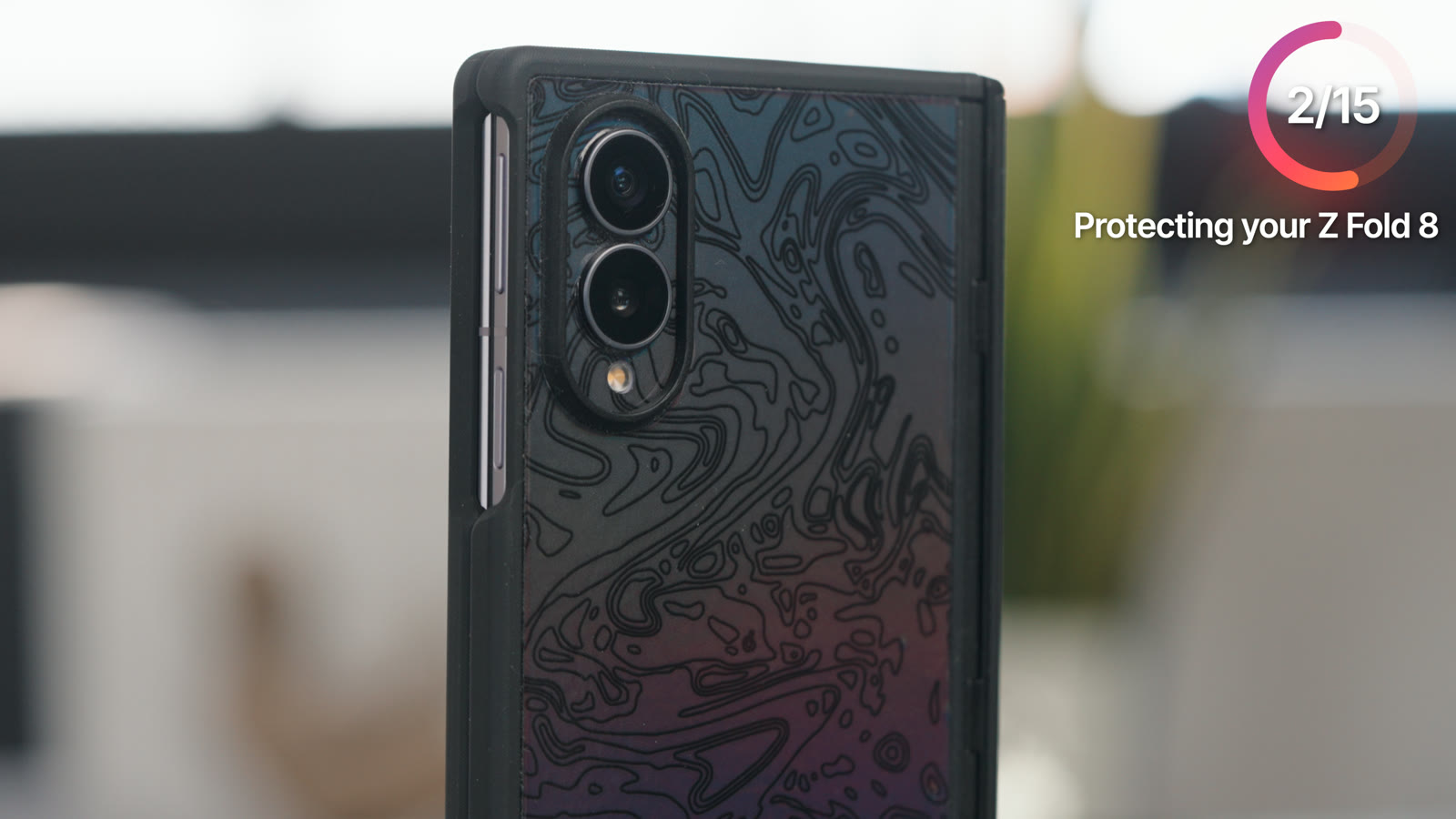
I use dbrand for skins (that’s an affiliate link, I earn a small commission), but buy whatever you like. Just don’t carry it naked for a fortnight while you decide. More on protection and what I’d actually spend here.
2. Sort your charger today
There’s no charger in the box, and the Fold 8 finally charges properly: 45 watts, up from 25 on the Fold 7, which means zero to 65 percent in about half an hour. Your old 25W Samsung brick will work, just slowly. Any decent USB-C brick with PD and PPS does the job. I use this UGREEN 65W one, which fast-charges the Fold at its full 45W and covers a laptop too. The charging numbers, demonstrated.
3. Win the setup screens
Two jobs here. First, back up your WhatsApp messages on your OLD phone before you start Smart Switch, ideally to Google Drive. The transfer usually moves messages fine, but I’ve seen it fail, and the backup is your safety net. Use the cable, deselect the apps you no longer need (you’ll be surprised how many), and give it half an hour.
Second, the questions everyone taps straight past. Samsung will ask about the Customisation Service, marketing emails and diagnostic data. None of it makes the phone better for you. I decline the lot, and every toggle is still there in Settings if you ever change your mind. Watch me go through the exact screens.
4. Update everything before you judge anything
Day-one phones ship with day-zero software. Settings, Software update, grab what’s waiting. Then, and people miss this constantly, open the Galaxy Store (a different shop to the Play Store) and update the apps in there too, because the camera app updates separately from the firmware. While you’re in there, download Expert RAW, Camera Assistant and Good Lock. That last one matters a great deal, and we’ll get to why.
5. The ten-minute display pass
Three settings before you do anything fun. Motion smoothness on Adaptive, so you get the 120Hz this screen deserves. Screen mode: Vivid is the default and it’s good, but a bit shouty on greens and blues for my taste, so I nudge both down a couple of points in the advanced settings.
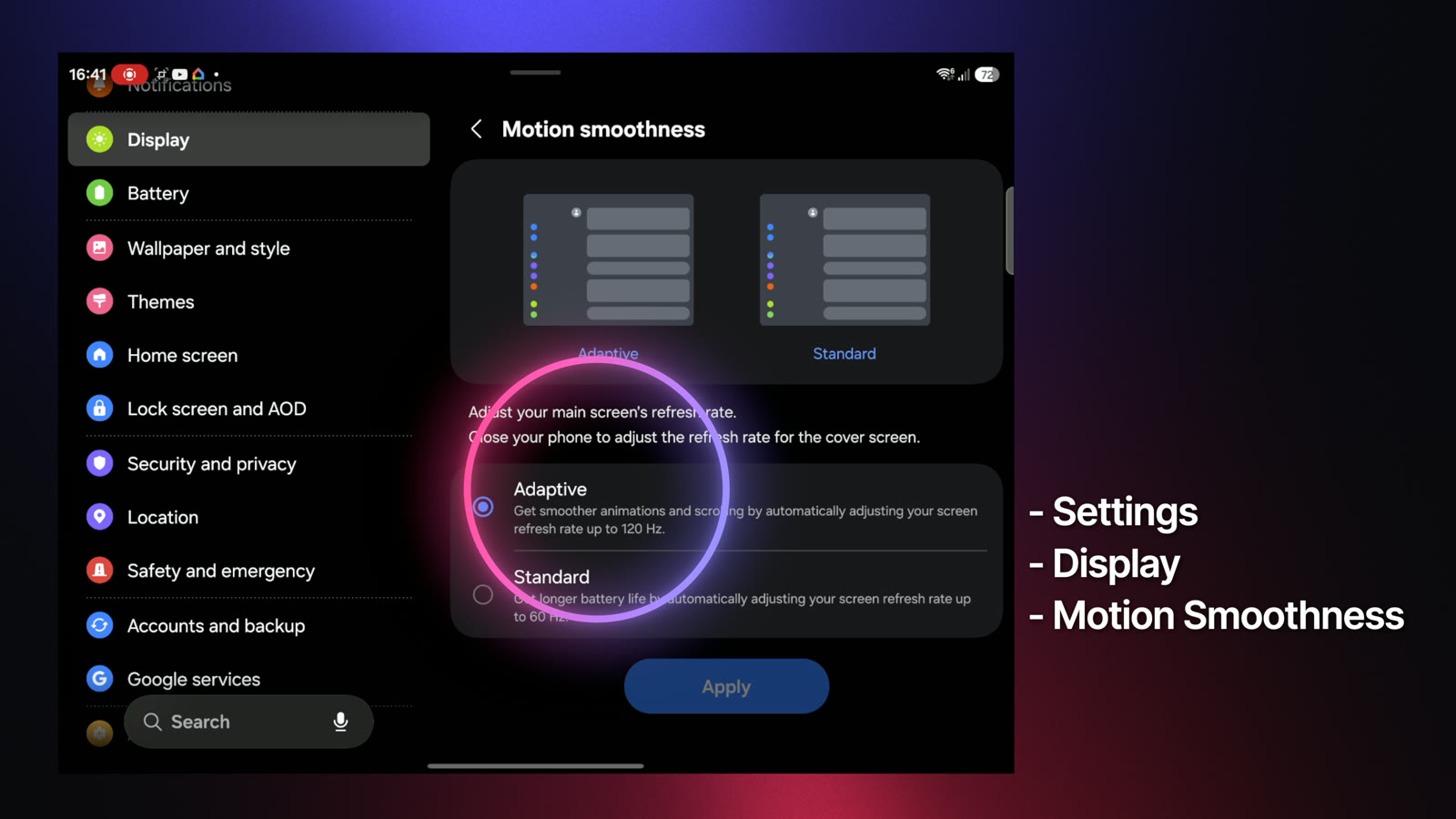
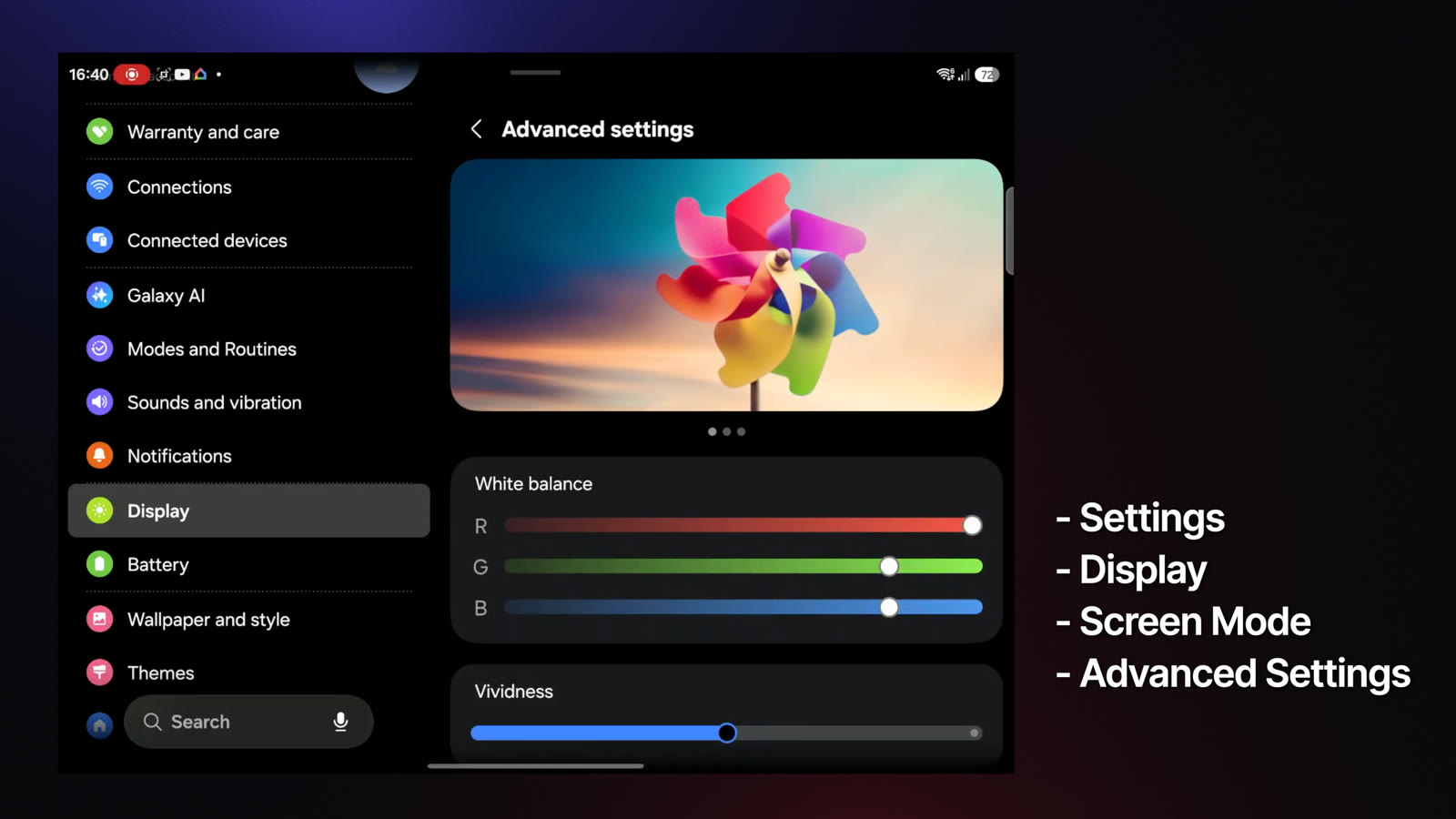
If you’re unsure, try Natural for a day. And Eye comfort shield on a sunset schedule, because you WILL end up reading on that 4:3 inner screen in bed. My exact colour settings are in the video.
6. You’ve got two phones. Set up both
A normal phone on the front, a small tablet inside, and One UI will happily let you lay them out separately. Settings, Home screen, cover screen mirroring. I keep mine mirrored (you can still run different wallpapers on each screen), but stripping the cover screen to essentials and treating the inner screen as your desk is a legitimate way to live.
While you’re in there, switch on “Continue apps on cover screen” so folding the phone doesn’t kill your YouTube video mid-play, and note the “swipe up to continue” option for when you’d rather it asked first. See both behaviours side by side.
7. Fix the buttons
Holding the side key summons Gemini out of the box, which is a big improvement on Bixby. If you’d rather it just worked as a power button, Settings, Advanced features, Side key. Set double-press to launch the camera. And switch to swipe gestures, because on a screen this good the navigation bar is wasted space. The two-minute button pass.
8. Learn the taskbar
Open the phone and there’s a dock along the bottom. This is where the Fold turns into a mini computer. Pin your favourites, let recents fill the right side, and build the week-one habit: stop going back to the home screen to switch apps. Everything launches from down there, like the dock on a Mac. Watch the taskbar workflow, and give it two days before you judge it.
9. Build your App Pairs (do this one)
If you only take one thing from this article, make it this or the keyboard fix. Drag an app up from the taskbar, hold it to one side, and the screen splits. Save that layout as an App Pair and the whole workspace opens from one icon, every time. Mine: WhatsApp and Calendar for sorting the week, email and browser for admin, YouTube and Notes for research, banking next to Messages.
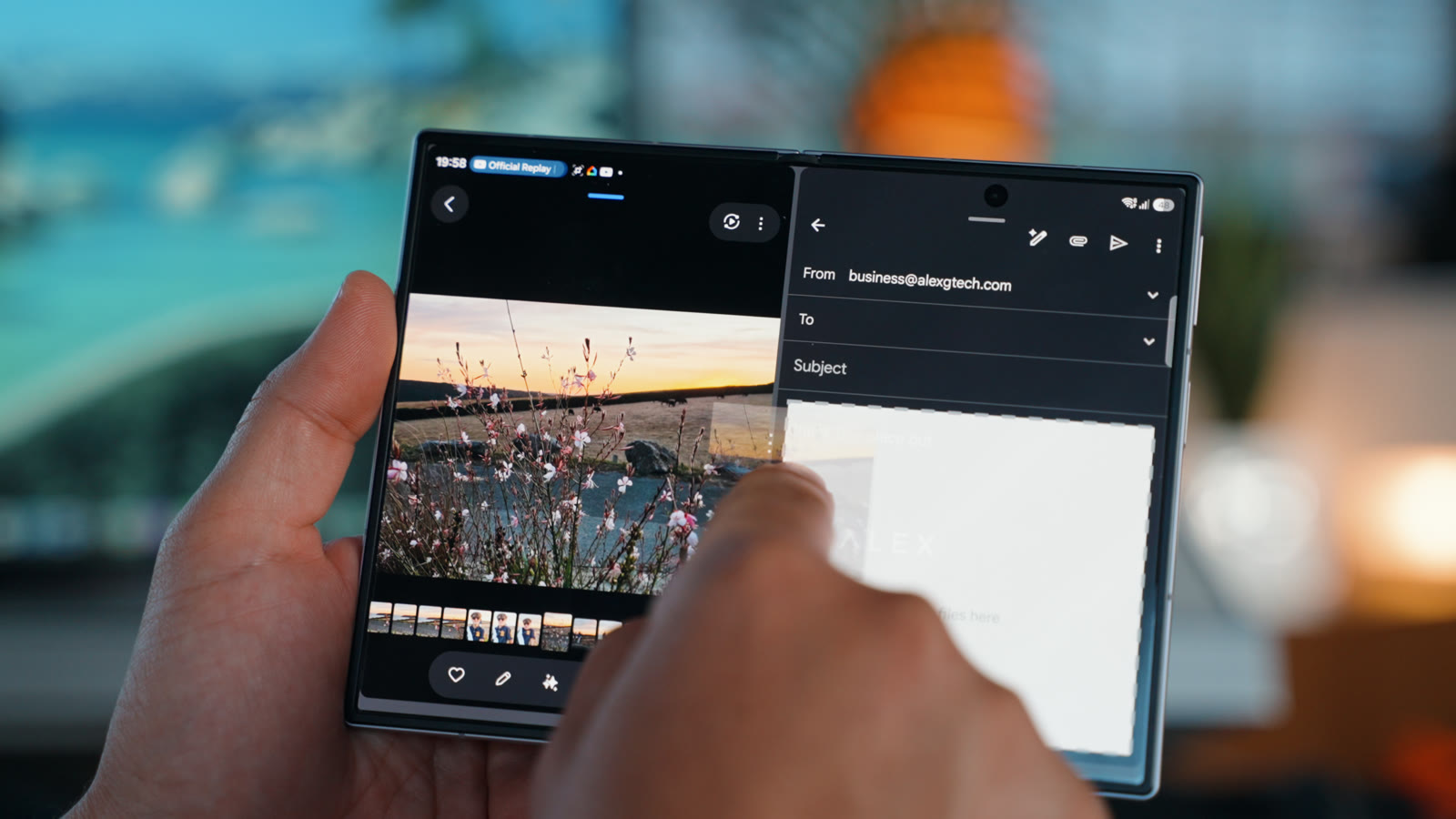
Then try drag and drop between the panes: photos into emails, text off websites into notes, no copy-paste. This is the stuff the adverts never show, and it’s the reason you bought a folding phone. The full App Pairs demo is here, including the star trick that puts your pairs one swipe away.
10. Stop using the selfie camera
The best selfie camera on this phone is the pair of 50MP cameras on the back. Open the camera, tap the cover screen preview switch, flip the phone round, and frame yourself on the front display using the proper glass. Dual Recording is worth a look too. Seeing this one makes it click instantly.
11. Good Lock: fix the keyboard everyone’s moaning about
Typing on the big screen is the number one complaint from new Fold owners, and the fix is free. First, the built-in options: keyboard layout per screen (standard, split, floating) plus one-handed mode. Then the proper fix: install Good Lock from the Galaxy Store, download the Keys Cafe module, and rebuild the keyboard around your own hands. It even tracks which typos you make most. Mine told me I hit full stop instead of space constantly, so I nudged the space bar right and the problem vanished. The before and after has to be seen, it’s the single most transformative thing in this entire guide.
12. MultiStar and Home Up: the foldable cheat codes
Two more Good Lock modules while you’re in there. MultiStar has a section Samsung literally named “I love Galaxy Foldable”, where the headliner forces any app into full screen, even the ones that refuse (looking at you, half the apps on that lovely big display). Home Up’s Task Changer turns the recents screen into a grid of six apps instead of a rolodex of three.
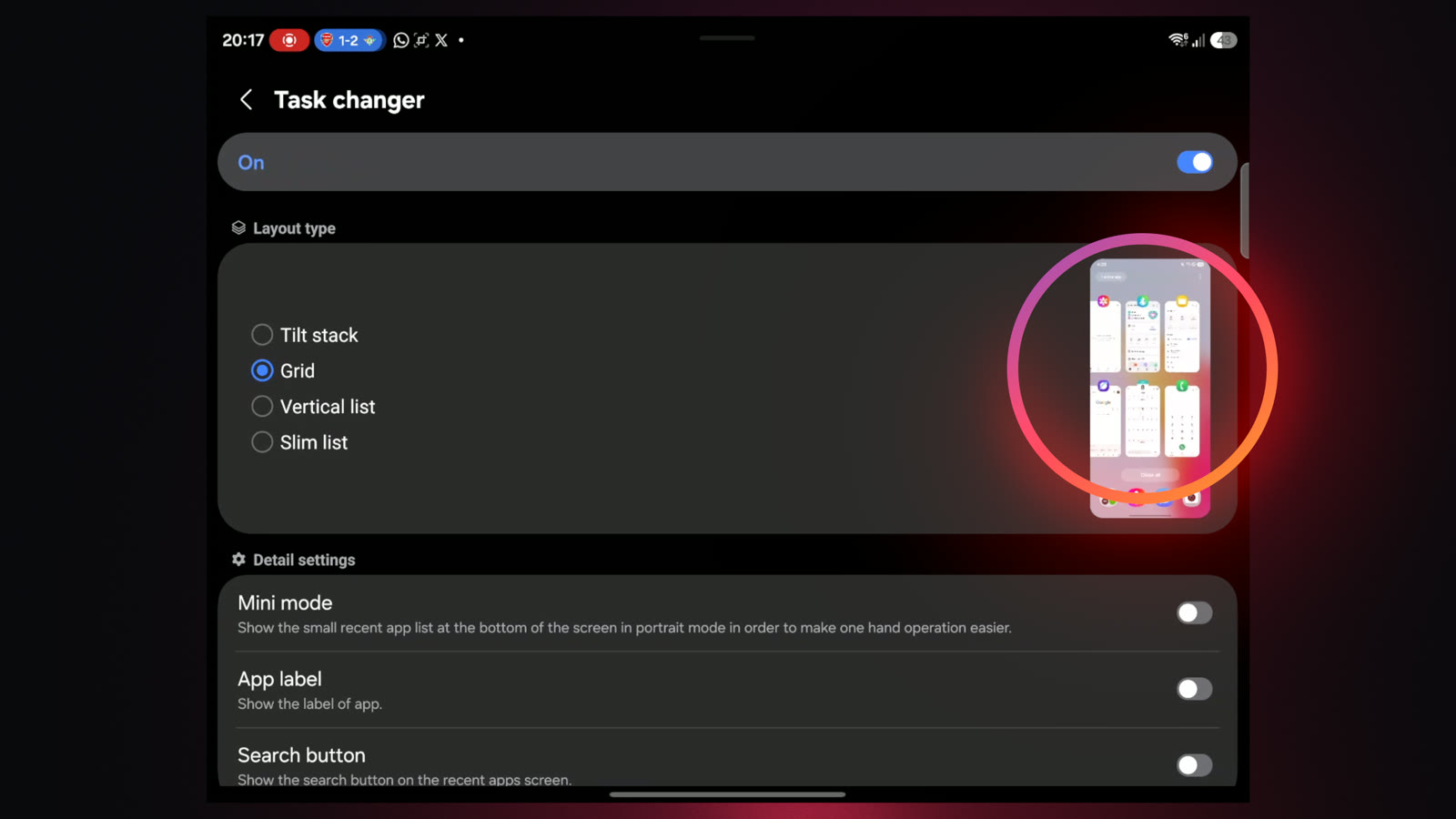
Both modules, demonstrated. And if you want a full Good Lock deep dive as its own video, tell me in the video comments, I’m already halfway down that rabbit hole.
13. Galaxy AI and the five-minute privacy pass
You don’t need an opinion about AI to set this up properly, you need two minutes. Settings, Galaxy AI, feature by feature, on for what sounds useful, off for what doesn’t. Circle to Search and Interpreter are the two that genuinely suit a foldable.
Then the privacy pass, including the sneaky one: search Settings for “ads” and nothing comes up. You have to go to More privacy settings, scroll down to ads, and delete the advertising ID yourself.
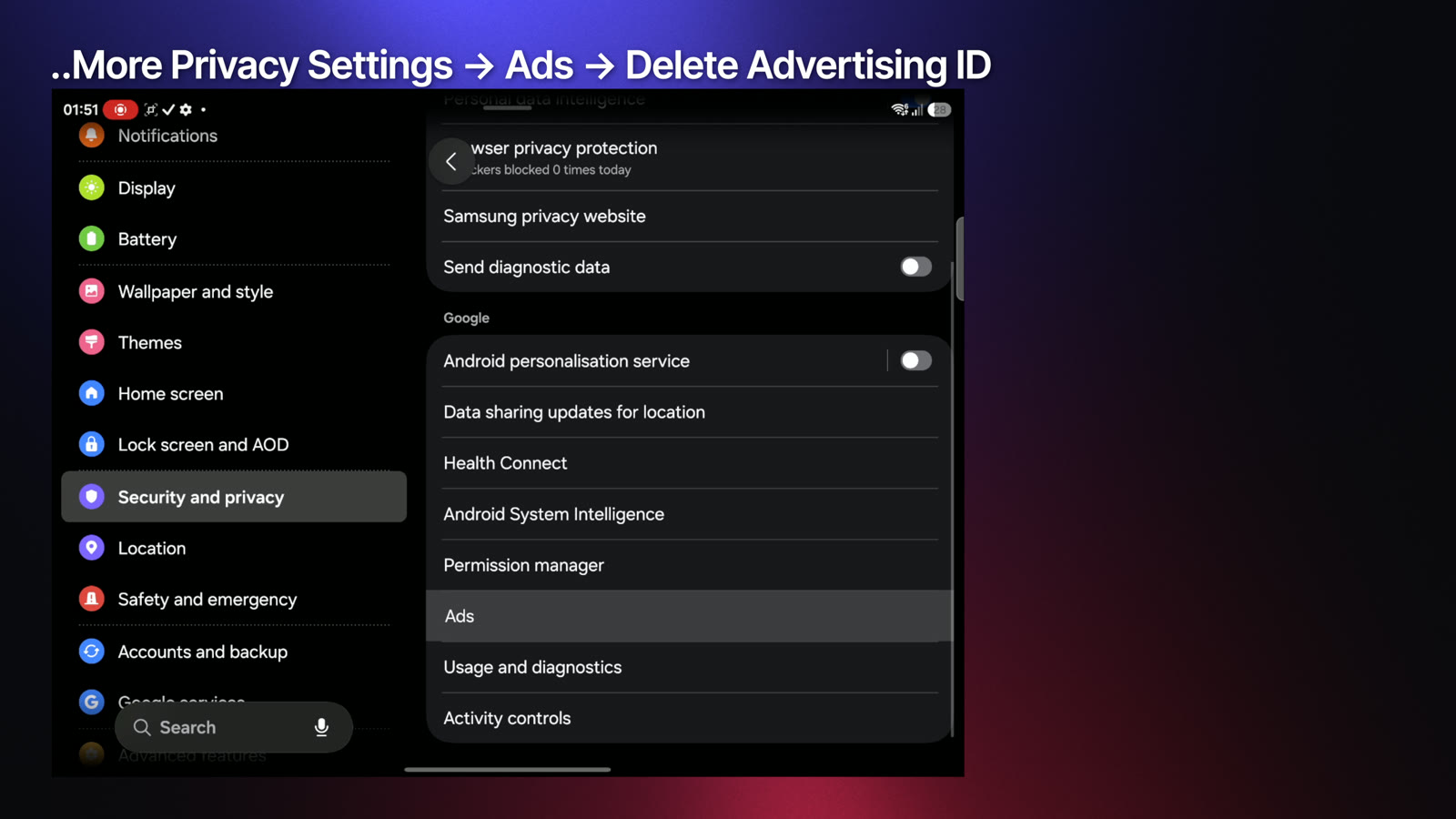
I show the search failing on camera, because I think you should at least be able to find the setting.
14. Modes and Routines: teach it to run itself
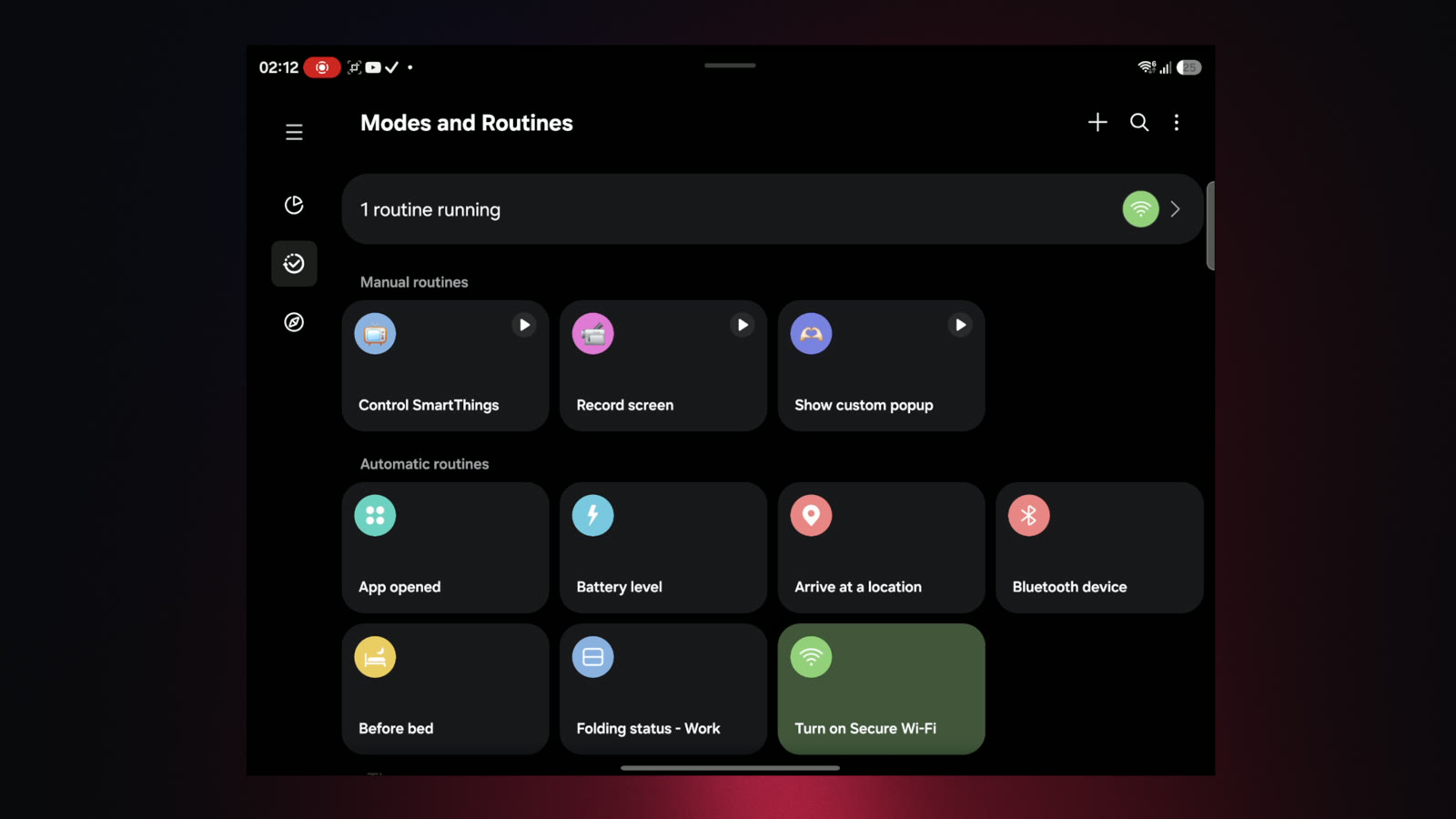
The most underrated feature on the phone. Fifteen minutes on the sofa, once, and the Fold starts running itself: silencing at night when it hits the charger, opening your reading app when you unfold it, going quiet on office WiFi, movie mode when Netflix opens on the big screen. All six of my routines are in the video, ready to steal, plus the Good Lock module that extends them further.
15. Battery habits from day one
Settings, Battery, Battery protection. The default charges to 100 and pauses until 95, which is better than nothing. Maximum protection holds between 80 and 95, and mine sits at 90 when I’m not testing.
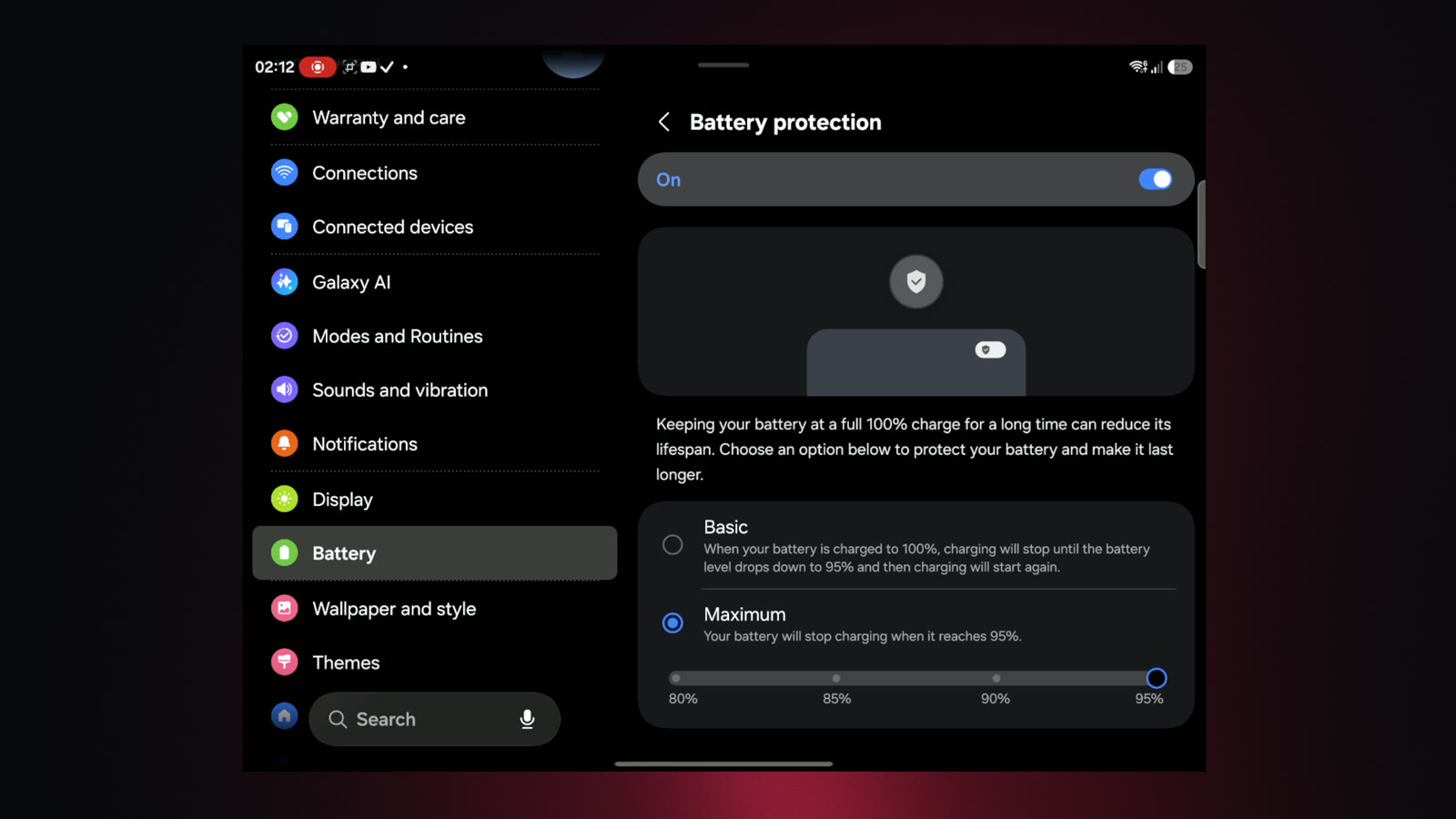
And good news for the desk: the Fold 8 is Qi2 ready, so with a magnetic case it snaps onto the new magnetic stands. The one on my desk is the ESR 3-in-1 (they work with the channel, but that’s not an affiliate link and I earn nothing from it, it’s just what I use). The battery settings walkthrough.
And three things to think twice about
Chargers above 45W (the phone can’t use them, put the money towards the case). Crease creams and hinge sprays (a dry microfibre cloth covers ninety-five percent of foldable care, the rest is not taking it to the beach). And the opposite of a skip: have a proper look at Samsung Care, because sometimes it’s nicer to enjoy the phone uncased knowing you’re covered. My reasoning on all three.
That’s your first week sorted
Case on, junk declined, taskbar learned, keyboard fixed, and a phone that runs itself. If you want to see all fifteen done on the actual device, the full video is right here, and the comment section is turning into tip number 16, so drop your own discoveries in there. The best ones go into my one-month-later review.
Already own one and wondering whether the trade-offs land? That’s what my full Galaxy Z Fold 8 review is for — and if you’re still choosing, the £200 question: Fold 8 or Fold 8 Ultra.
Want the stories behind videos like this one — what worked, what went wrong, what I’d do differently? That’s Behind The Lens, my newsletter. One email, no spam, unsubscribe whenever. Sign up here.
Some links in this article are affiliate links and I may earn a small commission at no extra cost to you. This article is not sponsored, and no manufacturer saw it before you did.